


Hargreaves Lansdown
There are two ways to connect Hargreaves Lansdown to Sharesight depending on where you are in your setup:
- New to Sharesight? Start by importing your holdings as an opening balance using the steps below, then forward each new trade confirmation to your portfolio email address.
- Already using Sharesight? Skip the history import. Download your contract note PDF from Hargreaves Lansdown and forward it to your portfolio email address. Each trade should appear in Sharesight within minutes.
How to import account summary as opening balance
You can import your current holding summary in to Sharesight following Read this help guide the step-by-step instructions below.
1 - Download your Hargreaves Lansdown account summary as a spreadsheet file.
2 - Go to Gemini
3 - Upload the file.
4 - Copy paste the prompt below
Task
Column mapping & transformation rules
Column A – Opening balance date
Header: Opening balance date
Source: Spreadsheet created at row
Format: YYYY-MM-DD

Column B – Instrument code
Header: Instrument code
Source: Code column
Review the Ticker column. If a value is 2-4 letters (like BARC), treat it as a Ticker. If a value is 7 characters and alphanumeric (like B42NVC3), treat it as a SEDOL and map it to its corresponding ISIN.
Column C – Market code
Header: Market code
Determine stock exchange using the Instrument code column
Use Sharesight-supported market codes only:
https://www.sharesight.com/au/supported-stock-exchanges-managed-funds-mutual-funds/
If the Instrument code is an ISIN (fund), use the market code FundUK for GBP-denominated UK funds.
Mapping rules
If Instrument code is an ISIN → FundUK
If Instrument code is a ticker:
USD → NASDAQ or NYSE (choose the most appropriate based on the company)
GBP → LSE
No default or generic market codes are allowed (e.g. FUND, MUTUAL, OTHER)
Column D – Cost Base
Header: Cost Base
Source: Cost(£) column
Column E – Quantity
Header: Quantity
Source: Units held column
5 - Click Export to Sheets > Open Sheets
Please review and confirm that the instrument code (ticker or ISIN) is correct before importing, as incorrect codes can result in trades being matched to the wrong investment. Fund names and descriptions may not uniquely identify a single security.
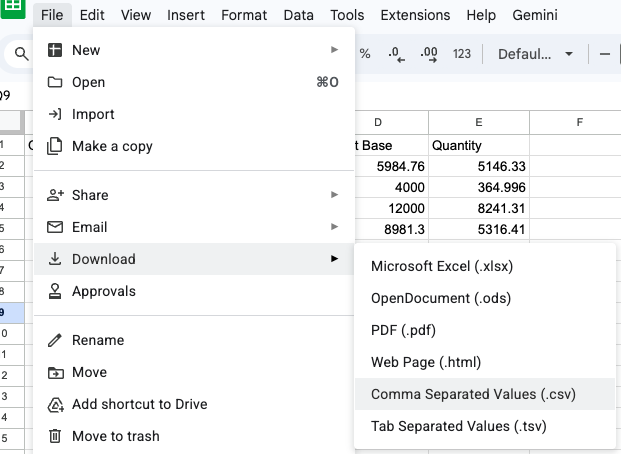
6 - Download the spreadsheet as .csv file
7 – Login to Sharesight.
8 - Click Add investment then select Upload via broker.
9 - Select Opening balances for each holding
10 - Click the Upload a file button.
11 – Select the file.
12 - Click import.
How to import new trades
You can manually add ongoing trades or email the contract note using steps below:
-
Go to your Hargreaves Lansdown account
-
Download the contract note as a PDF
-
Email the trade confirmation to your portfolio email address
The trade should be added in the portfolio in 5 minutes.
After importing your portfolio
Now that your portfolio is populated, see What to do after importing your portfolio for next steps.