


There are two ways to connect Saxo to Sharesight depending on where you are in your setup:
- New to Sharesight? Start by importing your full trade history using the steps below, then forward each new trade confirmation PDF to your portfolio email address.
- Already using Sharesight? Skip the history import. Export your trade confirmation PDF from Saxo and email it to your portfolio email address. Each trade should appear in Sharesight within minutes.
Import historical trades
You can bulk import your historical buy and sell trades in to Sharesight by uploading a spreadsheet. Read this help guide for step-by-step instructions on how to bulk import your historical trades.
- Login into Saxo
- Click on Profile in the top right corner.
- Select Transactions
- Set Date range: since inception to present date
For ongoing trades import, set the start date to the last imported trade date to avoid duplication.
- Select Export on the right
- Include details
- Select Excel
- Login to Sharesight.
- Click Search for your broker or Add investment then Upload via broker.
- Search Saxo
- Click Choose a file to upload the file
- Click import
How to import new trades
- Log in to your Saxo trading account.
- Click on Profile in the top right corner.
- Select Corporate action
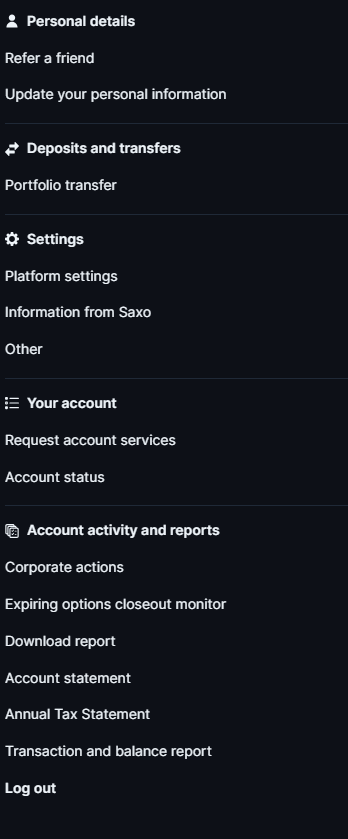
4.On the top of your screen click on Portfolio

- Select Transactions

- Select Trades
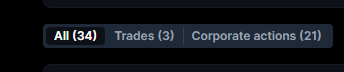
- This shows all the instruments you have traded
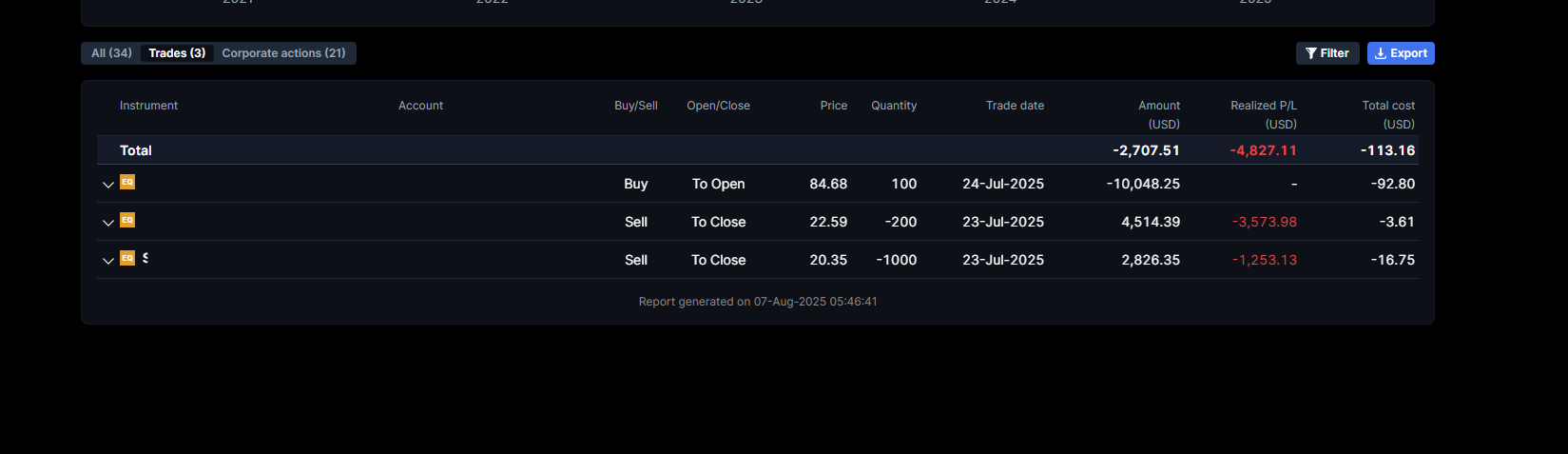
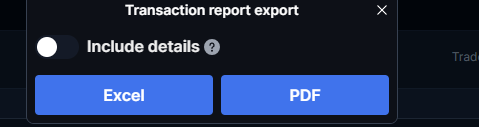
- Click Export, enable Include details.
- Click on v next to each trade to expand

- Select More
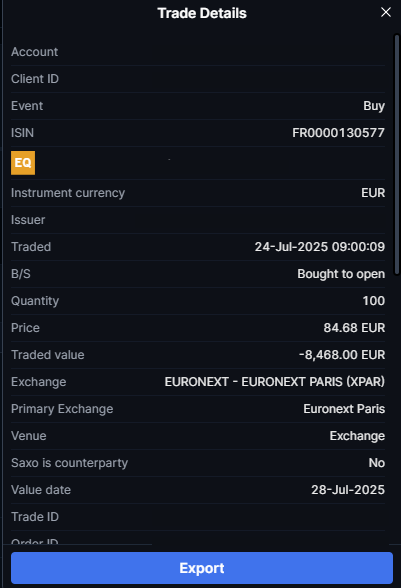
- Click Export
- Email the PDF as an email attachment to your Sharesight portfolio email address.
After importing your portfolio
Now that your portfolio is populated, see What to do after importing your portfolio for next steps.